All integrationsKato for Raycast
Your workspace.
A few keystrokes away.
Find the record. Capture the task. Join the meeting. Bring your Kato workspace into Raycast and keep your day moving.
For macOS · Public beta in Raycast Store review · Follow the submission
 Start with My Day. See what needs your attention, then take action.
Capture & actA quick thought.
A proper task.
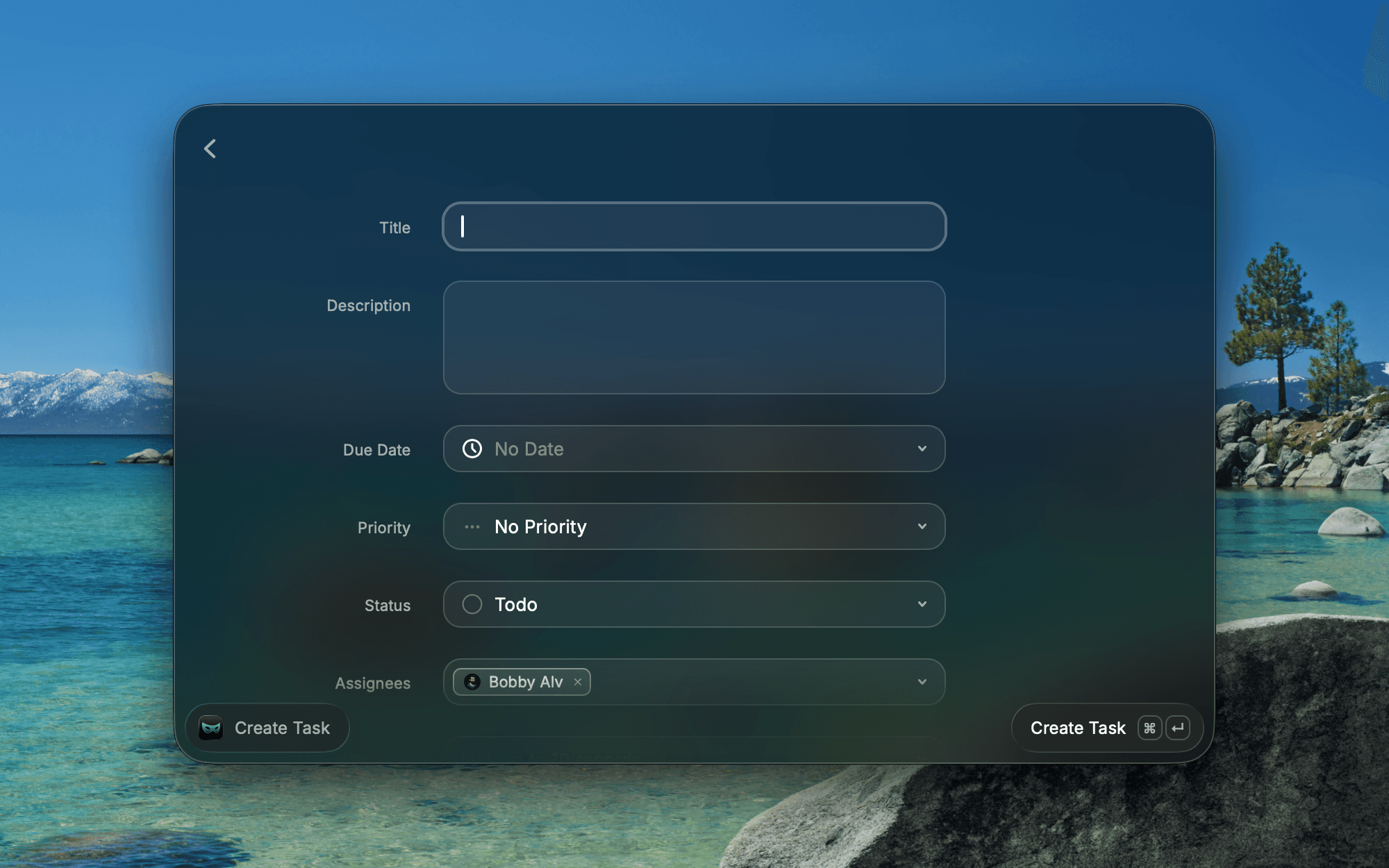
Create a task without leaving what you’re doing. Add a description, due date, priority, and assignees, then link it to the right record or meeting.
Open My Tasks to update work, add a comment, or mark it complete. The changes stay connected to your Kato workspace.
Find the contextThe right record.
Right at hand.
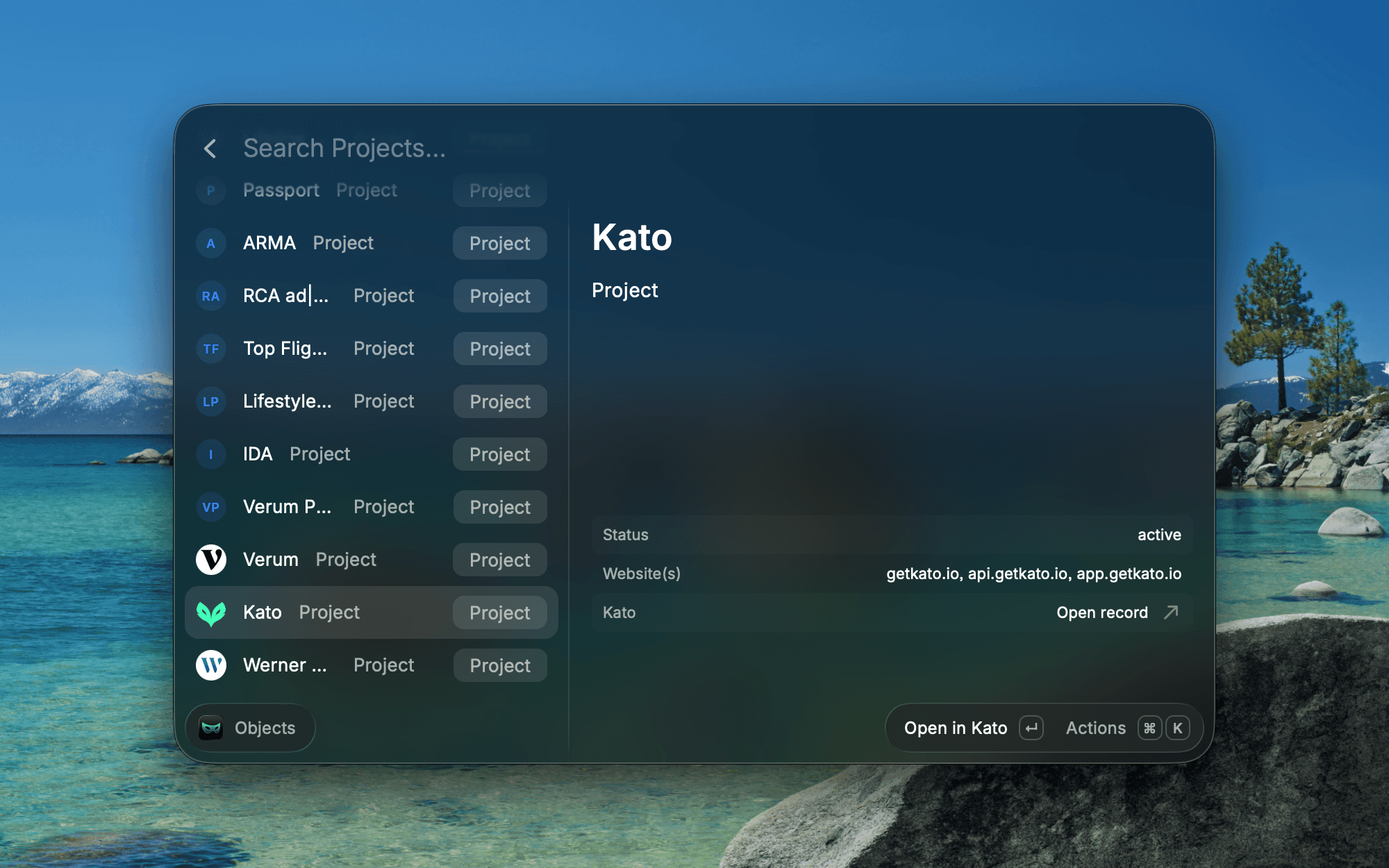
Search tasks, records, and meetings, or use Objects to browse your workspace. Recognize the same names, icons, and fields you already use in Kato.
Inspect a record, create a linked task, or open the full workspace when you need more room.
At your commandLess switching. More doing.
Nine focused commands for the work you reach for every day.
- 01Search Workspace
- Find tasks, records, and meetings across your workspace.
- 02My Day
- See overdue work, today’s tasks, meetings, and unread notifications.
- 03Create Task
- Capture work with its owner, due date, priority, and linked records.
- 04My Tasks
- Review assigned work, update details, and mark tasks complete.
- 05Objects
- Browse your workspace’s objects and inspect their records.
- 06Upcoming Meetings
- Check your schedule and join a call when a meeting link is available.
- 07Notifications
- Triage mentions, assignments, and updates. Mark them read or dismiss them.
- 08Kato Menu Bar
- Keep an eye on what needs your attention from the menu bar.
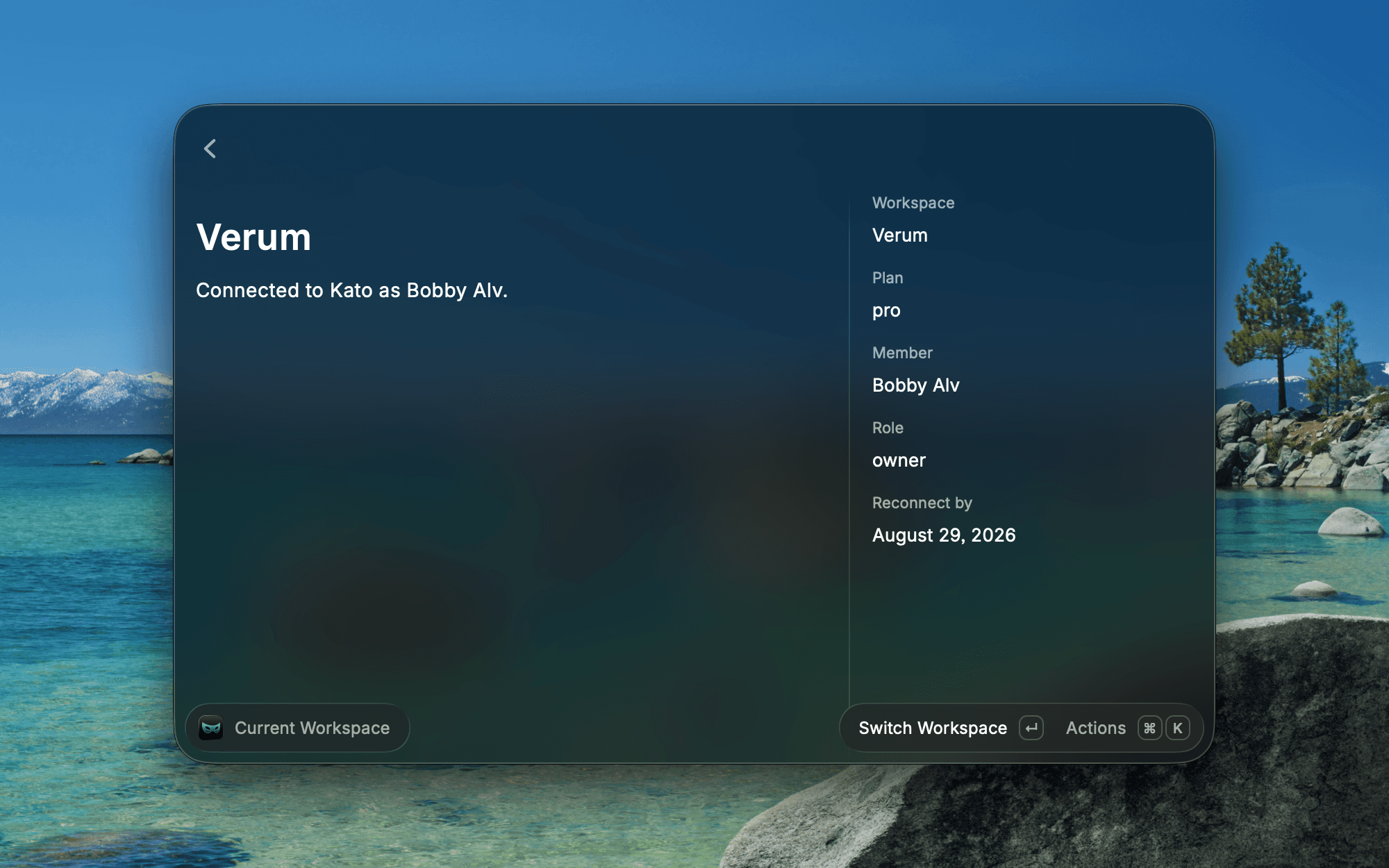
- 09Current Workspace
- Check your connection or switch to another Kato workspace.
Your account. Your workspace.Connect once.
Stay in your flow.
Sign in with Kato in your browser and choose a workspace. No API key or client secret to copy.
- Once the extension is approved, install Kato from the Raycast Store.
- Run any Kato command and choose Connect Kato.
- Sign in, select your workspace, approve access, and return to Raycast.
Access stays personal
The connection uses OAuth with PKCE and is scoped to your workspace. Your Kato permissions still apply.
Switch when you need to
Use Current Workspace to connect another workspace. Disconnect through Raycast’s extension preferences.
Know what changes
Create and edit tasks, add activity comments, and join meetings. Record and meeting fields remain read-only.
Your next action is closer.
The macOS public beta is in Raycast Store review. Read the release notes for what’s included.
Read the release notes